Backup Set Wizard
Overview of all Backup Set properties

|
Backup Set Wizard
|
|
Backup Set is the heart of the WestNet Backup program. By setting them, you can get full control on your backups, and customize backup options to your own needs.
All Backup Set properties are concentrated in the Backup Set Wizard. You use it when adding or editing Backup Sets. It walks you through an entire process of adding or editing of a Backup Set:
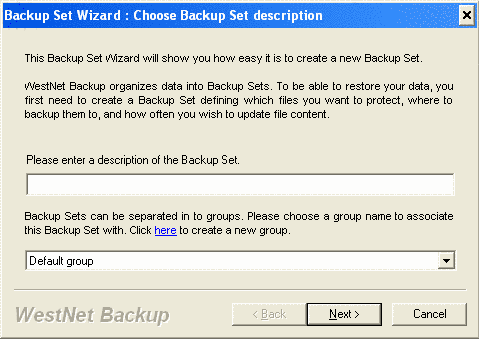
The first page introduces you in the Backup Set concept and allows to enter a description for a new Backup Set.
|
Each Backup Set must have a unique description that will be used to identify this Backup Set on a backup media. It has to contain up to 50 symbols, digits or spaces. Enter a Backup Set's description at the field. To make your work easier with many Backup Sets, you can separate them in to groups. That's pure logical division and does not affect backup or restore operations. Just select your group at the combobox. Click the Next button to accept the entered description and proceed. |
|
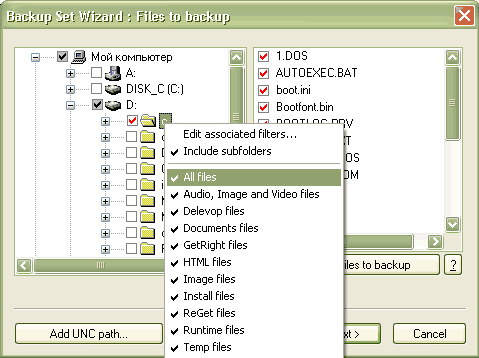
The next page allows you to include and exclude files, folders
and registry keys to/from backup.
When you add a new Backup Set, all boxes are white.
You can include folders, registry keys, or files to backup by clicking on
checkmarks near a folder or a file. The selected folders, files and registry
keys have a white box with a red check.
|
A gray box with a red check means that this folder will be included in the backup, but it contains a number of excluded subfolders.
You can backup network files and folders by specifying their UNC paths. Use "Add UNC path..." button to add a network folder at the tree. You can include or exclude network files and folders as you do that with local files.
To preview a list of the selected files, press the "Show list of files to backup" button. Click the Next button to accept the selected files and folders, and proceed.
|
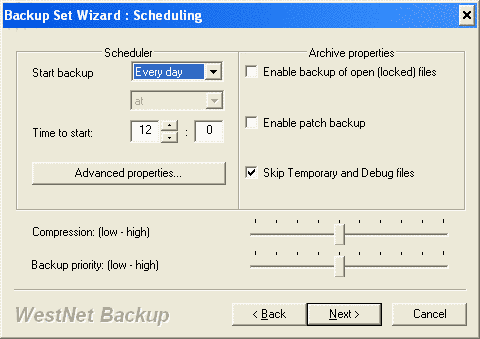
When you have selected which files you want to backup and where, you have to specify how often you would like to start automatic backups of this Backup Set and how backups will work. At the Start backup combobox you have to select one of the values. If you select "Every week", you can choose week days to start automatic backups. At the Time to start fields you have to set a time to start automatic backups. Advanced properties allow specifying a type of automatic backup (full or incremental). By default all backups are incremental. |
Enable backup of open (locked) files - WestNet Backup has a special kernel driver (Windows NT/200/XP) to backup open files. If you have installed this driver, enable its use.
Enable patch backup - Enables patch backups for this Backup Set. Patch backup mode transfers only the part of a file that has changed, which will significantly reduce the size of incremental backups. We recomend enabling this option. You can read more about patch mode here.
Skip Temporary and Debug files - turn this checkbox on to exclude Temporary and Debug system directories from backup.
Compression level and Backup priority control a size of a backup archive and how much CPU time a backup process will take.
|
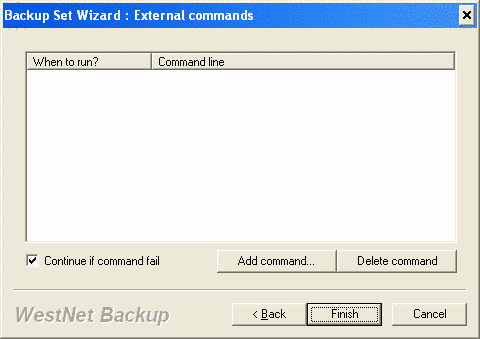
WestNet Backup gives you unlimited customization of the backup process through the use of external commands. External command is an external executable file that can process different operations with source and archive files before, during, and after backup. Here you can add a number of external commands to execute in the different events of backup process. Each external command can have a command line. You can use a number of special variables in the command line. WestNet Backup replaces variables on real names before executing the external command. |
| $(FilesList) | Name of a file with a list of all files to backup (one line = one filename). |
| $(TYPE) | Backup type ("inc" or "full" string). |
| $(CurFile) | Name of currently backing up file. |
| $(LF) | Name of a temporary log file. Its content will be added to the backup log. |
|
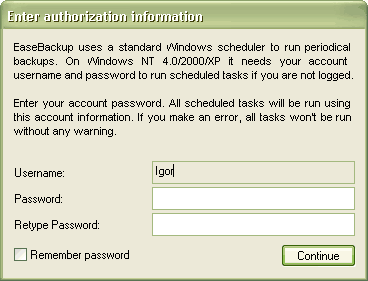
WestNet Backup uses the standard Windows scheduler to run periodical (automatic) backups. If you use Windows NT/2000/XP, it's necessary to enter your Windows account username and password. If you make a mistake, Windows won't be able to run your periodical backups. Click the Continue button. WestNet Backup will create or edit all necessary scheduled tasks by itself. |