Add or Import a new Backup Set Edit, View, Delete Backup set commands Backup commands Copy commands Restore command Information and support commands

Backup Set commands
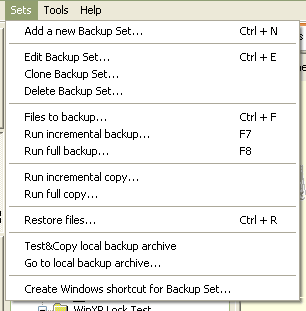
Sets menu contains all commands to manage your Backup Sets.


    All Backup Set's commands are in the Sets menu. Context-sensitive menu of each Backup Set contains the same commands.

There are a few logical groups:

  1. Add a new Backup set
  2. Import from a Backup set template
  3. Edit commands
  4. Backup commands
  5. Copy commands
  6. Restore command
  7. Add-on commands

Add a new Backup Set

You have two choices to create a new Backup Set.

  1. Add a new Backup Set - this command opens a new Backup Set Wizard. Just follow instructions of the Wizard to add a new Backup Set.
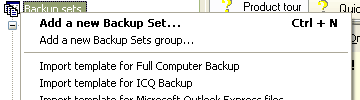
  2. Import from a Backup Set template

    1. Right-click on the Backup Sets item in the tree
    2. Select "Import template for ..." item
    3. The Backup Set Wizard will appear with predefined information.
    4. You may change it as you want.
    5. A new Backup Set will appear.


List of operations with an existing Backup Set


  1. "Edit backup set" - Backup Set Wizard with properties of the selected Backup Set will appear. You may edit them as you want.


  2. "Delete backup set" - This commands deletes the selected Backup Set. You have to confirm the deletion.


  3. "Files to backup... ". When an incremental backup is running, only new or modified files will be backed up. This command shows you a list of these files and their total size.


  4. "Run increment backup... ". Start the backup process of only new or modified (from the last backup) files.


  5. "Run full backup... ". Start the backup process of all source files without checking the date of their last modifications.


  6. "Run increment copy... ". This command invokes a Copy wizard with a list of new or modified files. You can copy these files to another computer without having additional programs.


  7. "Run full copy... ". This command invokes a Copy wizard with a list of all source files. It allows easily duplicate folders.


  8. "Restore files... ". Start the restore process of all or only selected files.


  9. "Test&Copy local backup archive". If you backup to a zip archive, this handy option allows to quickly check the integrity of the archive file, find out how many files it contains and their compression ratios, and copy it to another location. It's useful if you think that you may have had any problems with a disk, or memory, on your computer.


  10. "Go to archive file... ". If you want to quickly go to the folder with the archive file, use this command.


  11. "Create Windows shortcut for Backup Set". You can easily create a standard Windows shortcut to start most commonly used Backup Set's commands directly from your Desktop, Start Menu, Quick launch toolbar, or from any other folder.