Preparing for a disaster
How to prepare your computer for a disaster

|
Preparing for a disaster
|
|
Everything you do with WestNet Backup is aimed at the ultimate goal of restoring files which have been damaged or lost. You may need to restore few accidentally deleted files or an entire Windows computer that is no longer working. Following are set of instructions to best prepare your system to later restore of a few files or an entire computer.
To prepare your system for later restore you have to:
Before everything you have to make a complete backup of all your hard disk volumes. You may have done so already following the Quick Start instructions for your first backup. If not, do a complete backup of all your files now. Set the scheduling properties of a Backup Set to update your backup as often as you can. WestNet Backup is a powerful tool but if you didn't backup a few weeks, you will lose everything you have done during these weeks.
Disaster Recovery CD is the easiest and fastest way to restore your computer's hard disk. It contains all core system and WestNet Backup files and allows restoring your disk without formatting each drive and installing Windows and WestNet Backup software. But this option has 3 limitations:
- You registration key has to have a permission to use this module.
- You computer must be able to boot from a CD-ROM drive.
- Recovery CD does not support NTFS disks and converts them to FAT16/FAT32 disks. That's why you will need to convert restored disks back to NTFS if you use Windows NT/2000/XP.
Use the Disaster Recovery Wizard at the File menu to generate an ISO-format CD-R image file. Then burn the ISO image file into a CD-R disc and keep it in a safe place.
NOTE: We recommend that you do a new or incremental backup and prepare a new Disaster Recovery CD image each time you make hardware changes to your computer, such as changing a SCSI card, backup device, or device drivers.
Files with repair information contain everything you need to prepare WestNet Backup to restore your files after a disaster: definition of all your Backup Sets, encryption keys, catalog files and other configuration files.
We recommend you to save your repair information even if you created a Disaster Recovery CD because it may be unable to restore your hard disk (you may have a special configuration or other problems).
If you use encryption keys to encrypt your backup archives, you MUST have files with repair information to restore your files. Without keys you won't be able to decrypt your backup archives! Even if you don't use encryption keys, files with repair information will save you a lot of time. To restore your files you will need to:
- Have all encryption keys you used during backups. You can't recreate or somehow recover them! If you lose them, you lose your backups!
- Recreate all your Backup Sets. You can do that manually, but much more easy to allow the Repair Wizard to recover them automatically.
- Download catalog files. You can download catalog files from backup media (disks, CD-Rs, FTP Server or tapes) but if you use tapes, it will take a lot of time (WestNet Backup will need to search all your tapes). Fresh repair information will save your time with that task too.
To create files with repair information, use Disaster Recovery Wizard command at the File menu. Choose "I want to save configuration and encryption keys" option and press the Next button. The following page will appear.
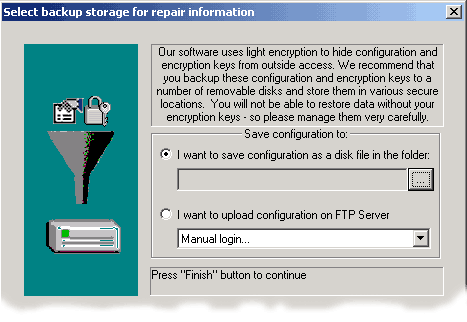
Choose a place to save your repair information. It can be a disk (select a target folder) or FTP Server. Press the Next button to save repair information.
Do not forget the passwords you used to generate your encryption keys. You will need to enter them during restore.
WestNet Backup is not intended for backing up system files and you can not use it for restoring the whole operating system. That's why, you have to install your Windows operating system and WestNet Backup to restore your files. Have your Windows and WestNet Backup Installation Software and your License numbers ready. You will use them to install Windows on your hard disk if you need.
Note that you always can download WestNet Backup from Internet, but a local copy of it is safer (you may have problems with internet access).
At this point you have done WestNet Backup's disaster recovery preparation. Any time you add a new Backup Set or encryption key you should update your repair information. To do that you should use the Repair Wizard again. If you are backing up on a tape, you can configure a Backup Set to automatically save your repair information after every backup. Now you are ready to restore your files after a disaster.